📖 Introduction
Welcome to the Thinkster Learning Platform! This comprehensive guide will help you navigate the platform, access your courses, complete lessons, and take quizzes. Whether you're a new student or need a refresher, this documentation will walk you through every step.
What You Can Do
📚 Access Courses
View all your enrolled courses and track completion progress
📝 Complete Lessons
Interactive lessons with videos, text, and practice problems
✅ Take Quizzes
Adaptive assessments with instant feedback
📊 Track Progress
Monitor your learning journey with detailed analytics
🚀 Getting Started
System Requirements
- Browser: Chrome, Firefox, Safari, or Edge (latest versions)
- Internet Connection: Stable broadband connection recommended
- Screen Resolution: Minimum 1024x768, 1920x1080 recommended
- JavaScript: Must be enabled
Before You Begin
Make sure you have:
- Your login credentials (email and password provided by your instructor)
- Access to your registered email address
- A quiet space for focused learning
🔐 Student Login
Step-by-Step Login Process
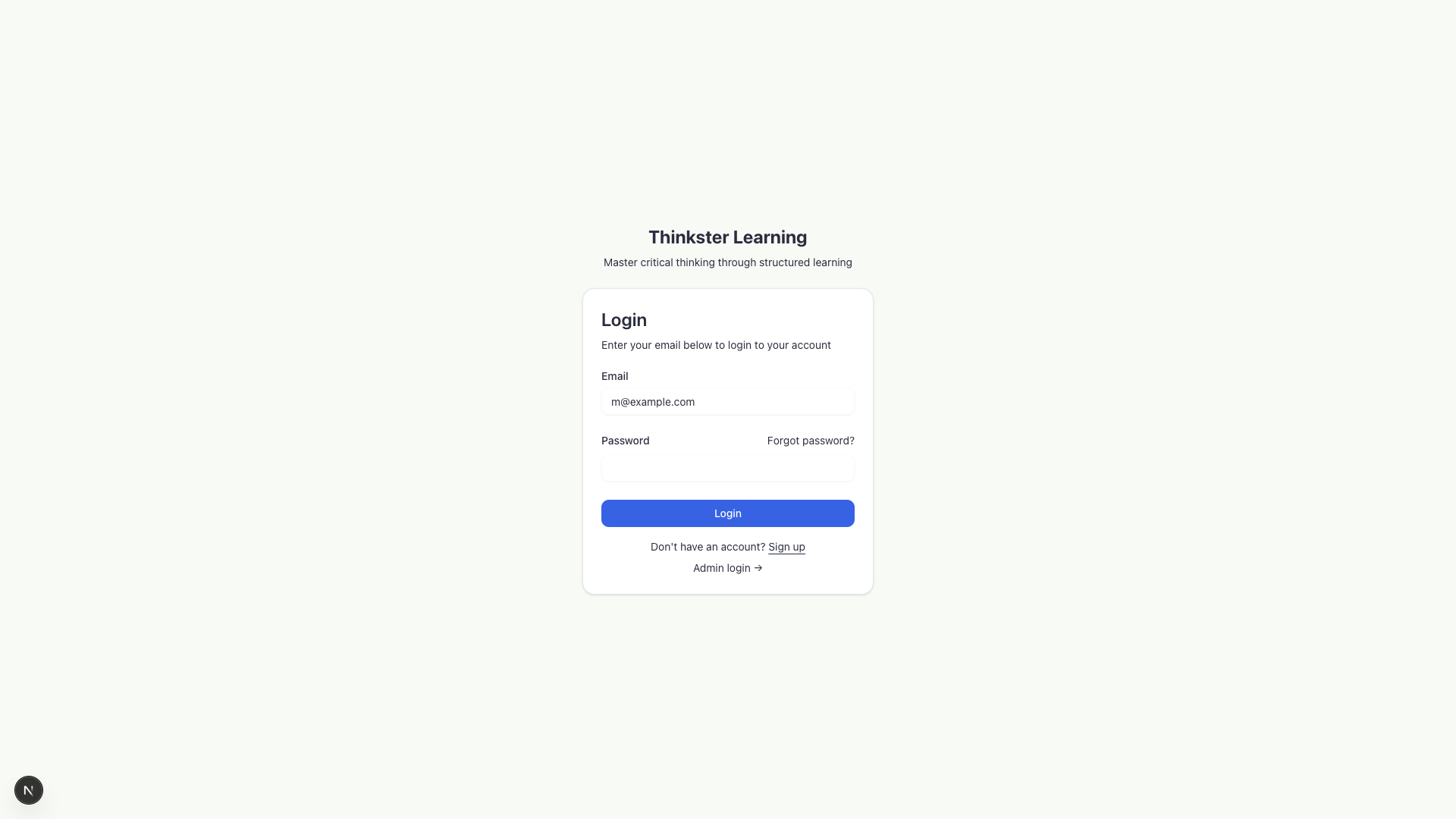
Step 1: Navigate to the Login Page
Open your web browser and go to the Thinkster Learning Platform URL:
https://your-platform-url.com
Click on the "Login" or "Sign In" button in the top right corner.
Step 2: Enter Your Credentials
- Enter your email address in the email field
- Enter your password in the password field
- Click the "Login" button
Forgot Your Password?
Password Reset Process
- Click on "Forgot Password?" link on the login page
- Enter your registered email address
- Click "Send Reset Link"
- Check your email inbox for a password reset link
- Click the link and follow the instructions to set a new password
- Return to the login page and sign in with your new password
Login Troubleshooting
| Problem | Solution |
|---|---|
| Invalid email or password | Double-check your credentials. Ensure Caps Lock is off. Try resetting your password. |
| Account locked | After 5 failed login attempts, wait 15 minutes or contact your instructor. |
| Page won't load | Check your internet connection. Try refreshing the page or clearing browser cache. |
| Email not recognized | Verify you're using the correct email. Contact your instructor to confirm enrollment. |
🏠 Accessing Your Dashboard
After logging in successfully, you'll be automatically redirected to your personalized dashboard. This is your learning hub!
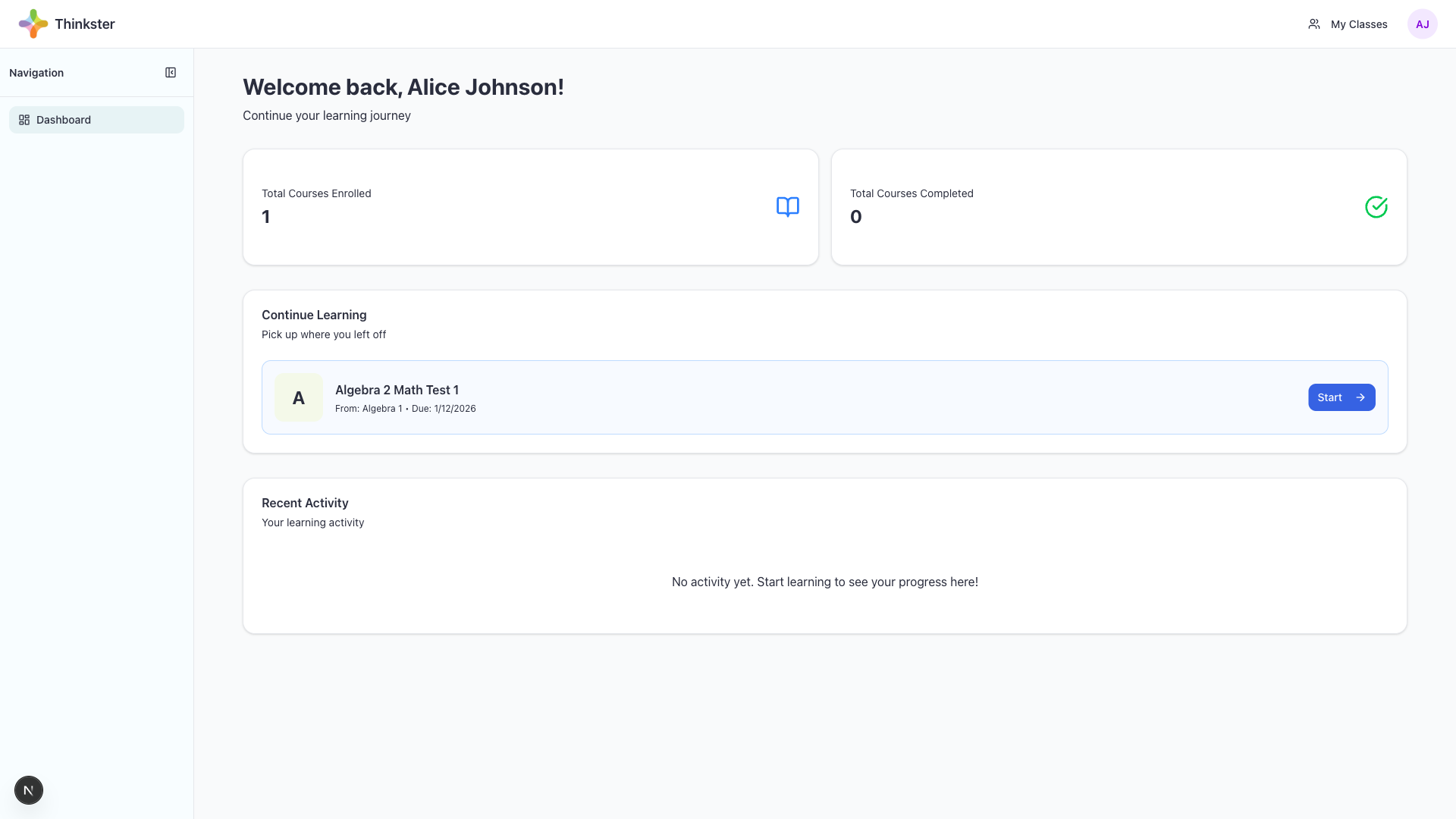
Dashboard Overview
1. Navigation Header
- Dashboard: Return to main dashboard (home)
- Courses: View all your enrolled courses
- Learning Journey: Track your personalized learning path
- Profile: View and edit your account settings
2. Welcome Section
Displays a personalized greeting and your current learning streak.
3. Course Cards
Each enrolled course appears as a card showing:
- Course name and description
- Progress bar (% completed)
- Number of modules and activities
- button
4. Recent Activity
Shows your last 5 completed activities with scores and dates.
5. Quick Stats
📊 Overall Progress
Average completion across all courses
⭐ Average Score
Your mean quiz score across all assessments
🔥 Learning Streak
Consecutive days of active learning
🎯 Activities Completed
Total lessons and quizzes finished
Dashboard Navigation Tips
- Click your profile picture (top right) to access account settings
- Use the sidebar menu for quick access to all platform features
- The "Continue Learning" button takes you directly to your next activity
- Bookmarked lessons appear in your dashboard for easy access
📚 Navigating Courses
Accessing Your Courses
Step 1: Go to Courses Page
From your dashboard, click "Courses" in the main navigation menu.
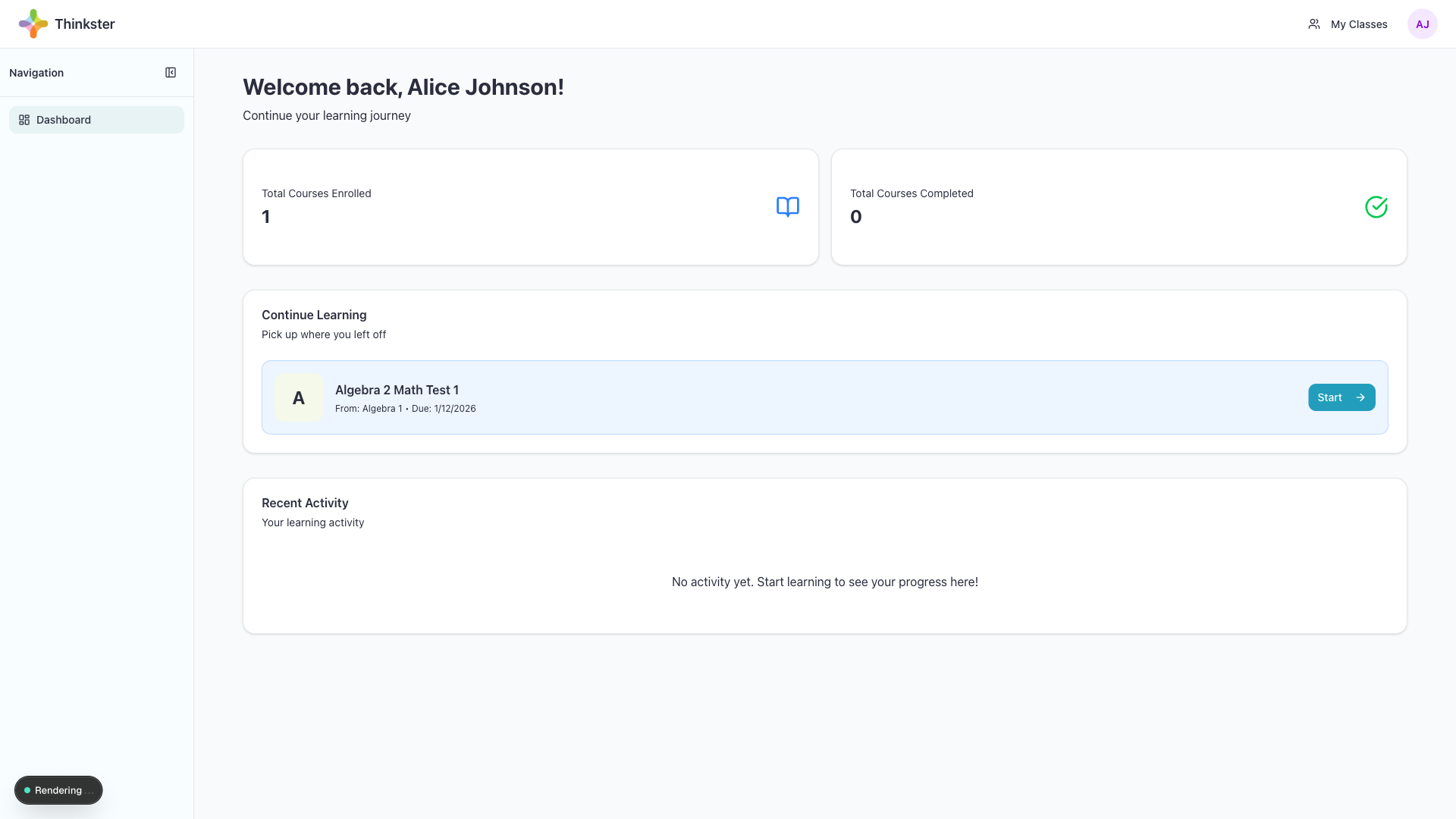
Course Page Overview
When you open a course, you'll see:
1. Course Header
- Course title and description
- Overall progress percentage
- Total modules and activities
- Estimated completion time
2. Course Modules
Courses are organized into modules (units or chapters). Each module contains multiple activities.
Module Structure
| Element | Description |
|---|---|
| Module Title | Name of the learning unit (e.g., "Introduction to Algebra") |
| Progress Bar | Shows % completion for that specific module |
| Activity List | All lessons, quizzes, and resources in the module |
| Status Icons | ✓ Completed, ⏵ In Progress, ⭕ Not Started |
3. Activity Types
📹 Video Lessons
Watch instructional videos at your own pace
📖 Text Lessons
Read interactive content with examples
✍️ Quizzes
Test your understanding with assessments
🧮 Interactive Activities
Practice with GeoGebra and other tools
Starting an Activity
To Begin Any Activity:
- Click on the course from your dashboard
- Find the module containing the activity
- Click on the activity title
- The activity will open in the main content area
Course Navigation Features
Knowledge Graph
Many courses include an interactive Knowledge Graph that shows relationships between concepts:
- Click the "View Knowledge Graph" button on the course page
- Hover over nodes to see concept details
- Click nodes to jump to related activities
- Use zoom and pan to explore the graph
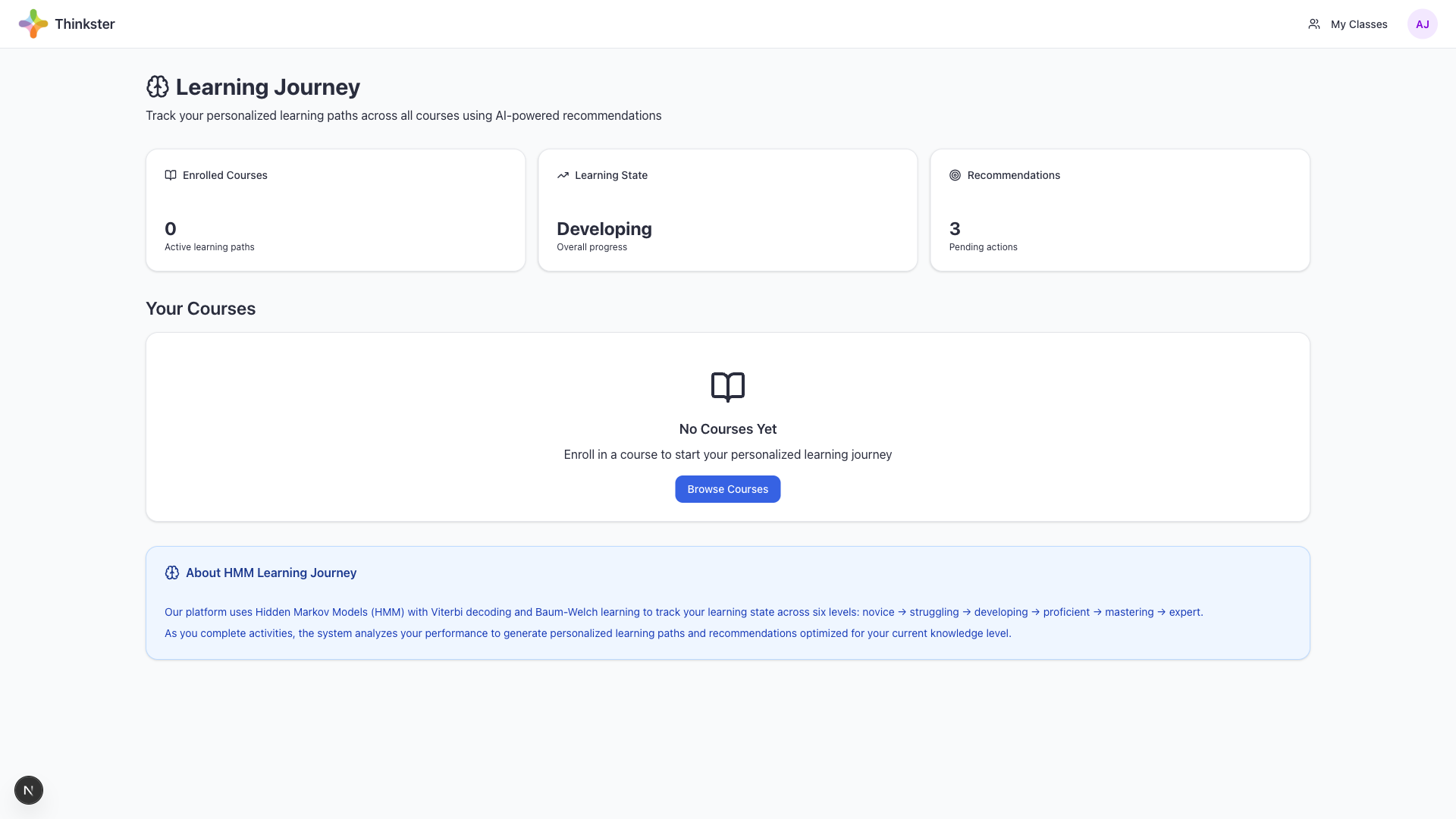
Learning Path Recommendations
The platform uses AI to suggest personalized learning paths:
- View recommended next activities based on your performance
- See which concepts need more practice
- Follow adaptive paths that adjust to your skill level
📝 Working with Lessons
Lesson Interface
When you open a lesson, you'll see a clean, focused learning interface:
Lesson Components
- Content Area: Main lesson content (text, images, videos, math equations)
- Navigation Bar: Previous/Next buttons to move between activities
- Progress Tracker: Shows your position in the module
- AI Coach (optional): Get help from the AI assistant
Interactive Elements in Lessons
1. Video Lessons
Using the Video Player:
- Click ▶️ to play/pause
- Use the progress bar to skip forward or backward
- Adjust volume and playback speed (0.5x - 2x)
- Click full-screen icon for immersive viewing
- Videos automatically track your viewing progress
2. Math Content
Mathematical equations are rendered with LaTeX for clarity:
- Hover over equations for larger view
- Complex formulas are interactive and can be explored
3. Interactive Widgets
GeoGebra: Interactive math visualization tools
- Drag points, sliders, and objects
- Explore geometric relationships dynamically
- Use built-in tools (compass, protractor, etc.)
Completing a Lesson
To Mark a Lesson Complete:
- Read through all content thoroughly
- Watch any videos to completion
- Interact with all widgets and examples
- Click "Mark as Complete" button at the bottom
- Or click "Next Activity" to continue (auto-marks complete)
- Take notes in a separate notebook or document
- Pause videos frequently to process information
- Work through examples on paper before checking solutions
- Revisit lessons if you're struggling with related quizzes
✅ Attempting Quizzes
Starting a Quiz
Step 1: Access the Quiz
- Navigate to your course
- Find the quiz activity (marked with ✍️ icon)
- Click on the quiz title
- Read the quiz instructions carefully
- Click "Start Quiz" button
- Ensure you have a stable internet connection
- Review related lessons if needed
- Have scratch paper and pencil ready
- Note any time limits displayed
Quiz Interface
Quiz Components
| Component | Description |
|---|---|
| Question Counter | Shows current question number and total (e.g., "Question 3 of 10") |
| Timer (if applicable) | Countdown timer for timed assessments |
| Question Text | The question prompt with any images, equations, or diagrams |
| Answer Area | Where you input your answer (varies by question type) |
| Navigation Buttons | Previous, Next, Submit buttons |
| Question Navigator | Sidebar showing all questions (answered, unanswered, flagged) |
Question Types
1. Multiple Choice (MC)
How to Answer:
- Read the question carefully
- Review all answer options
- Click the radio button next to your chosen answer
- Only one answer can be selected
- Click "Submit Answer" or "Next"
2. True/False
Select either True or False radio button.
3. Short Answer
How to Answer:
- Type your answer in the text box provided
- Be concise and specific
- Check spelling and formatting
- For math answers, use proper notation
4. Essay Questions
- Write longer responses in the text area
- Organize your thoughts before typing
- Include examples and explanations
- Proofread before submitting
5. Fill-in-the-Blank
Type the missing word(s) into the blank spaces within the sentence.
6. Code Challenges (for programming courses)
How to Answer:
- Write code in the provided code editor
- Use syntax highlighting for easier reading
- Test your code with the "Run" button
- View output and error messages
- Submit when tests pass
Quiz Navigation
Moving Between Questions
- Next Button: Move to the next question (saves current answer)
- Previous Button: Return to previous questions to review or change answers
- Question Navigator Panel: Jump directly to any question
Question Status Indicators
| Status | Meaning |
|---|---|
| ✓ Green | Question answered |
| ⭕ Gray | Question not yet answered |
| 🚩 Red Flag | Flagged for review |
| 👁️ Currently viewing | The question you're on now |
Flagging Questions
If you're unsure about an answer:
- Click the "Flag for Review" checkbox
- Continue with other questions
- Return to flagged questions before submitting
- The question navigator shows all flagged items
Submitting Your Quiz
Final Submission Process:
- Answer all questions you can
- Review flagged questions
- Check the question navigator for any unanswered questions
- Click "Review Quiz" to see a summary
- Click "Submit Quiz" button
- Confirm submission in the popup dialog
- Wait for the system to process your answers
Quiz Results and Feedback
After submission, you'll immediately see:
1. Score Summary
- Total score (points and percentage)
- Number of correct/incorrect answers
- Pass/fail status (if applicable)
2. Question-by-Question Feedback
For each question, you'll see:
- Your submitted answer
- Correct answer (if enabled by instructor)
- ✅ or ❌ indicator
- AI-generated personalized feedback explaining the concept
- Links to related lessons for review
- Read all feedback carefully, even for correct answers
- Click on concept links to review related material
- Note patterns in the types of questions you miss
- Use incorrect answers as study guides
3. Performance Analytics
View detailed insights about your quiz performance:
- Time Spent: Total time per question and overall
- Difficulty Analysis: Performance on easy vs. hard questions
- Concept Mastery: Which concepts you've mastered vs. need practice
- Comparison: How you performed relative to class average (if available)
Adaptive Quizzes
How Adaptive Quizzes Work
- Start with medium-difficulty questions
- If you answer correctly, next question is harder
- If you answer incorrectly, next question is easier
- The system estimates your ability level (θ) continuously
- Quiz ends when sufficient confidence in your ability is reached
Quiz Retakes
Depending on course settings, you may be allowed to retake quizzes:
- Check the quiz page for retake policy
- Some quizzes allow unlimited attempts
- Others may have a maximum number of attempts
- Highest or average score may be recorded
- Questions may change between attempts
To Retake a Quiz:
- Go back to the quiz activity page
- Click "Retake Quiz" button
- Review previous feedback before starting
- Start the quiz again
📊 Tracking Your Progress
Progress Dashboard
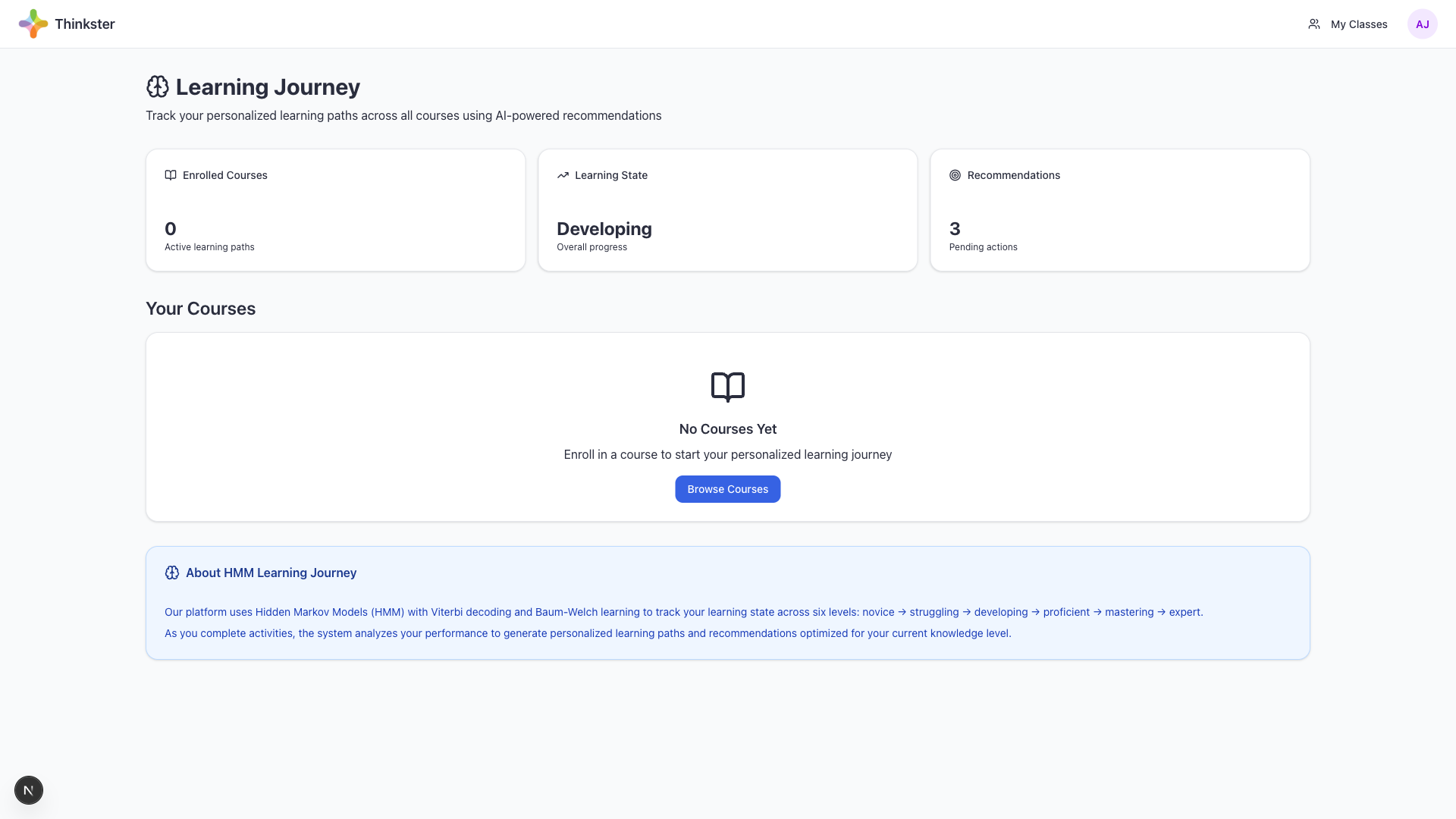
Access your progress tracking from the main navigation menu by clicking "Learning Journey".
Progress Metrics
1. Course Completion
- Overall course progress (percentage)
- Modules completed vs. remaining
- Activities completed in each module
- Estimated time to course completion
2. Learning States
The platform uses a Hidden Markov Model (HMM) to track your learning progress through six states:
| State | Description |
|---|---|
| 🔵 Novice | Just starting to learn a concept |
| 🟡 Struggling | Finding the concept challenging |
| 🟠 Developing | Making progress with the concept |
| 🟢 Proficient | Solid understanding of the concept |
| 🟣 Mastering | Advanced understanding, can apply concept |
| ⭐ Expert | Complete mastery, can teach others |
3. Concept Mastery
- View your mastery level for each concept
- See which concepts need more practice
- Track improvement over time with charts
4. Quiz Performance
- Average quiz score across all courses
- Score trends over time (line graph)
- Best and worst performing topics
- Time management statistics
5. Study Habits
- Learning Streak: Consecutive days active on platform
- Time Spent: Daily, weekly, and total study time
- Activity Log: Detailed history of all completed activities
- Peak Performance: Times of day when you score highest
Personalized Recommendations
Based on your progress, the AI system provides:
- Next Best Activity: What to study next for optimal learning
- Review Recommendations: Concepts to revisit based on decay patterns
- Challenge Activities: Advanced content when you're ready
- Study Schedule: Suggested weekly study plan
- Study regularly - consistency beats cramming
- Review recommendations daily
- Aim for green (proficient) or higher on all concepts
- Revisit "struggling" concepts with AI Coach help
🎯 Additional Features
AI Coach
Get personalized help from the AI-powered learning assistant.
Using the AI Coach:
- Click the "AI Coach" icon in the sidebar
- Type your question in the chat box
- Press Enter or click Send
- Read the AI's response and follow-up questions
- Ask for clarification if needed
What the AI Coach Can Help With:
- Explaining difficult concepts in different ways
- Providing additional examples and practice problems
- Debugging math or code problems
- Suggesting study strategies
- Clarifying quiz questions (without giving direct answers)
- Be specific with your questions
- Ask for step-by-step explanations
- Request alternative explanations if confused
- Don't use it to just get quiz answers - learn the concepts!
Content Resources
Access supplementary materials like PDFs, worksheets, and reference guides.
Accessing Resources:
- Click "Content" in the navigation menu
- Browse or search for resources by topic
- Click on a resource to view or download
- Use the embedded PDF viewer or download to your device
Knowledge Graph
Explore how concepts are interconnected with the interactive knowledge graph.
- View concept relationships visually
- Click nodes to see prerequisite and dependent concepts
- Use to plan your learning path
- Filter by mastery level to focus on weak areas
Curriculum Standards
Track your progress against educational standards (CCSS, Singapore Math, etc.):
- See which standards each activity covers
- View your mastery of each standard
- Identify gaps in your knowledge
- Perfect for test prep aligned to standards
Bookmarks and Notes
(If enabled by your instructor)
- Bookmark: Save lessons for quick access later
- Notes: Write personal notes on any lesson page
- Highlights: Highlight important text in lessons
🔧 Troubleshooting
Common Issues and Solutions
Login and Access Issues
| Problem | Solution |
|---|---|
| Can't remember password | Use "Forgot Password" link on login page |
| Password reset email not received | Check spam folder; wait 5 minutes; contact instructor |
| Account locked after failed logins | Wait 15 minutes or contact instructor to unlock |
| Session expired message | Log out completely and log back in |
Content Loading Issues
| Problem | Solution |
|---|---|
| Page won't load or is stuck | Refresh the page (F5 or Cmd+R); clear browser cache |
| Videos not playing | Check internet connection; try different browser; disable ad blockers |
| Math equations not displaying | Enable JavaScript; refresh page; update browser |
| Interactive widgets not working | Allow JavaScript; check if pop-ups are blocked; try incognito mode |
Quiz and Submission Issues
| Problem | Solution |
|---|---|
| Quiz won't submit | Check internet connection; save answers; try again; contact instructor if persists |
| Lost progress during quiz | Most answers auto-save; log back in and resume; contact instructor if lost |
| Timer expired | Quiz auto-submits; check if partial credit is given; contact instructor if technical issue |
| Answer marked wrong but seems correct | Check exact wording required; review feedback; message instructor for review |
Browser Issues
If you experience persistent issues:
- Clear browser cache and cookies
- Chrome: Settings → Privacy → Clear browsing data
- Firefox: Preferences → Privacy → Clear Data
- Safari: Preferences → Privacy → Manage Website Data
- Disable browser extensions (especially ad blockers)
- Try incognito/private browsing mode
- Update your browser to the latest version
- Try a different browser
Getting Additional Help
- Instructor: Email your course instructor for course-specific issues
- Help Button: Click the help icon (?) for live chat support
- Support Email: support@thinkster.com
- Response Time: Usually within 24 hours on business days
When Contacting Support, Include:
- Your full name and email address
- Course name and activity where issue occurred
- Description of the problem
- Screenshots if applicable
- Browser and operating system you're using
- What you've already tried to fix it
❓ Frequently Asked Questions
Account and Access
Q: How do I get enrolled in a course?
A: Your instructor enrolls you in courses. If you believe you should have access to a course but don't see it, contact your instructor.
Q: Can I use the platform on my phone or tablet?
A: Yes! The platform is mobile-responsive. However, some interactive features (like GeoGebra) work best on larger screens.
Q: How long do I have access to a course?
A: Access duration depends on your enrollment. Check with your instructor for specific timelines.
Learning and Assessments
Q: Do I have to complete activities in order?
A: It depends on the course settings. Some courses require sequential completion, while others allow you to skip around. Locked activities indicate prerequisites.
Q: Can I retake quizzes?
A: This varies by course. Check the quiz instructions for retake policies. Many quizzes allow multiple attempts.
Q: What's the passing score for quizzes?
A: Passing scores are set by your instructor and vary by course. The quiz page will display the passing threshold.
Q: How is my final grade calculated?
A: Grade calculation varies by course. Typically includes quiz scores, activity completion, and sometimes participation. Check your course syllabus.
Technical Questions
Q: Why isn't the AI Coach responding?
A: Check your internet connection. If the issue persists, try refreshing the page or clearing your browser cache.
Q: My progress isn't saving. What should I do?
A: Ensure you're staying logged in and not using private/incognito mode. Activities usually auto-save, but click "Mark Complete" to be sure.
Q: Can I download course materials?
A: Downloadable resources are available in the Content Resources section. Not all materials are downloadable due to copyright restrictions.
Q: Is there a mobile app?
A: Currently, the platform is web-based and works in mobile browsers. A native app may be available in the future.
Privacy and Data
Q: Can my instructor see my activity?
A: Yes, instructors can view your progress, quiz scores, time spent, and activity completion. This helps them provide better support.
Q: Is my data secure?
A: Yes, the platform uses industry-standard encryption and security measures to protect your data.
Q: Can I delete my account?
A: Contact your instructor or administrator to discuss account deletion options.
Study Tips
Q: How much time should I spend on each lesson?
A: The platform shows estimated times, but learn at your own pace. Focus on understanding, not just completing activities quickly.
Q: What should I do if I'm struggling with a concept?
A:
- Use the AI Coach to ask questions
- Review related lessons and resources
- Check the Knowledge Graph for prerequisite concepts
- Reach out to your instructor for additional help
Q: How can I improve my quiz scores?
A:
- Review all lessons thoroughly before taking quizzes
- Study AI feedback from previous quiz attempts
- Practice with interactive widgets
- Use the Learning Journey to identify weak areas
- Don't rush - take time to understand each concept